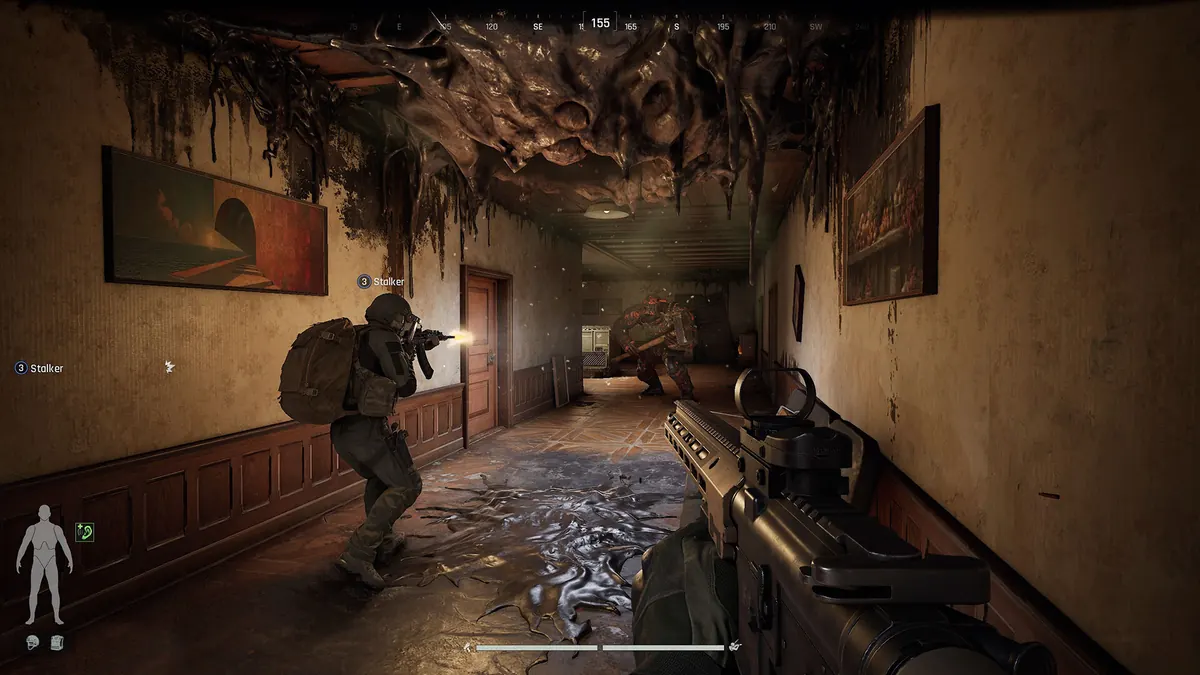
In Arena Breakout: Infinite, a dropped frame at the wrong moment can cost you a full kit you spent hours building. The game is demanding, with dense maps, heavy lighting and big view distances. The default presets are rarely the best balance between smoothness and seeing an enemy crouched in a dark corner.
Here's how to set it up properly.
Display Settings First
- Display mode: Fullscreen. Windowed modes can cost 5 to 10 FPS and add latency.
- Resolution: native. If you need more performance, use an upscaler instead of lowering resolution manually.
- VSync: off. It adds input lag. Use G-Sync or FreeSync with a frame cap instead.
- Frame cap: set it 2 to 3 FPS below your refresh rate (for example 141 or 142 FPS on a 144 Hz monitor). This keeps frame times consistent and latency low.
Upscaling and Reflex
The game supports DLSS, FSR and TSR, plus NVIDIA Reflex.
- NVIDIA RTX: DLSS on Quality. On RTX 40 and 50 series cards, Frame Generation is available, but only enable it with Reflex on and a base frame rate that's already decent.
- AMD Radeon: FSR on Quality or Balanced.
- Intel Arc / others: TSR is the most stable fallback.
- Reflex: On (or On + Boost if you're GPU-limited). It lowers system latency, especially with upscaling or frame generation enabled.
Avoid Performance and Ultra Performance upscaling modes. Distant players turn into soft blobs, which defeats the purpose in a game where you're scanning tree lines and windows.
Recommended Graphics Values
| Setting | Recommended | Why |
|---|---|---|
| Texture quality | Medium (High with 8 GB+ VRAM) | Limited by VRAM, not GPU power |
| View distance | Medium to High | Matters for spotting at range; quite expensive |
| Anti-aliasing | High | Reduces shimmering that hides or fakes movement |
| Shadow quality | Low | One of the biggest FPS costs |
| Post-processing | Low or Medium | Mostly visual polish |
| Effects | Low | Smoke and particle-heavy fights stay smooth |
| Vegetation | Low | Heavy on frames in outdoor maps |
| Shader quality | Low | Small visual impact, real performance cost |
| Lighting quality | Low | Large performance gain on mid-range GPUs |
| Motion blur / Depth of field | Off | Blurs targets for no gameplay benefit |
For low-end hardware with 2 to 4 GB of VRAM, drop textures to Low, set view distance to Medium and consider playing at 1600×900 with FSR enabled. Cards in the GTX 1650 or RX 570 class can hold a playable 55 to 65 FPS at 1080p with textures on medium and everything else on low, though the busiest maps will dip.
Fixing Stutter and Drops
- Clear the DirectX shader cache after major patches. Stutter right after an update is often down to stale shaders. You can clear it under Disk Cleanup → DirectX Shader Cache.
- Disable overlays you don't need (Discord, Steam, GPU software). They can cause frame spikes.
- Install on an SSD. Texture streaming on large maps suffers badly on hard drives.
- Update GPU drivers and keep Windows Game Mode on.
- Watch your CPU usage. If your GPU sits well below full load while FPS is low, you're CPU-limited, and lowering graphics won't help much. Lower view distance and effects instead.
Final Check
Load into a raid on a map you know, find the busiest area and watch your frame rate during a firefight rather than in a quiet corridor. If it stays stable at your cap, you're set. If it dips, lower shadows and lighting before you touch textures or anti-aliasing.
Like extraction games but want a persistent open world instead of raids? Read our coverage of STALZONE, formerly STALCRAFT: X. For more performance guides, see our Setup section.