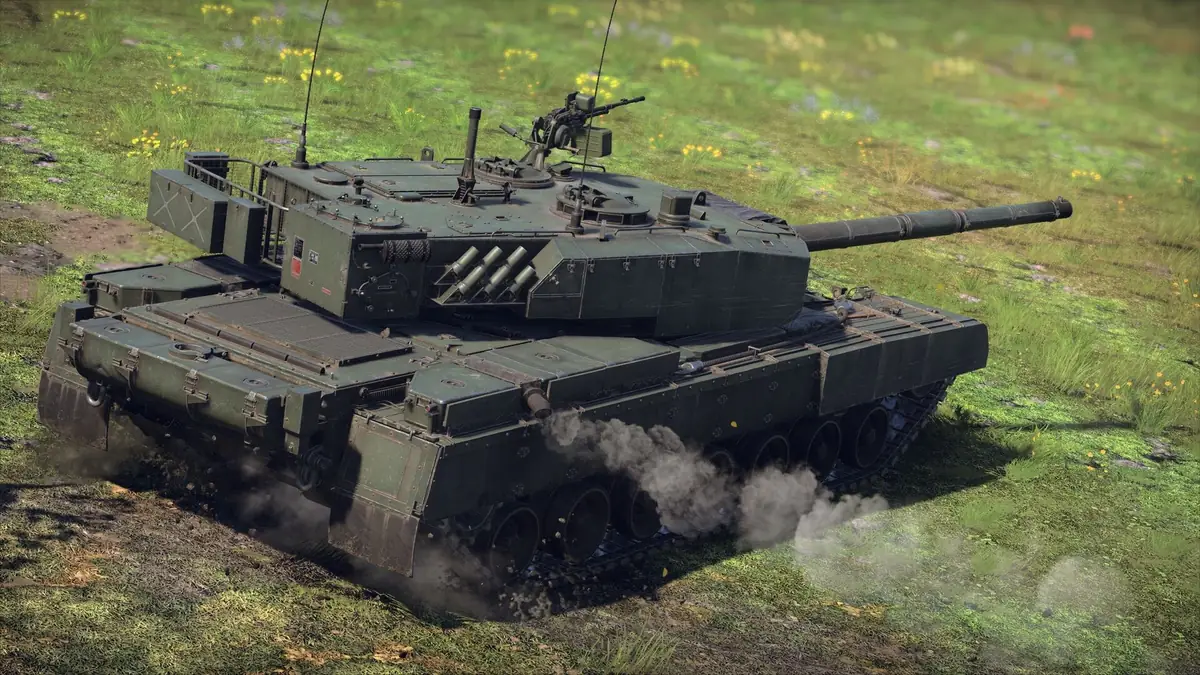
War Thunder looks great maxed out, but it's harder to run than its age suggests. Huge maps, long view distances, physics-driven debris and dozens of vehicles firing at once all hit both your GPU and your CPU. The good news is that a few settings carry most of the cost, and lowering them barely changes what matters in a match: seeing the enemy first.
This guide goes through the options that matter, then gives presets you can copy.
Start Here: Display Basics
- Mode: Fullscreen. Windowed and borderless modes can add latency and cost frames on some systems.
- Resolution: your monitor's native resolution. Use upscaling (below) rather than dropping resolution, which makes distant targets blurry.
- VSync: off. Use your monitor's G-Sync or FreeSync instead, with a frame cap a few FPS below your refresh rate (for example 141 FPS on a 144 Hz screen).
- Render API: War Thunder offers several on Windows. If you get stutter or crashes, switching the API is one of the first things to try after a driver update.
Upscaling: the Biggest Free Win
War Thunder supports DLSS on NVIDIA RTX cards and FSR on everything else. At 1440p and above, this is by far the largest performance gain you'll find:
- Quality mode costs very little sharpness and gives a clear FPS boost.
- Balanced gains more, with slightly softer distant detail.
- Avoid Performance and lower in ground battles if you can. Distant tanks become harder to pick out against foliage.
At 1080p, upscaling helps less and softens the image more. Try Quality mode first and decide by eye.
Settings That Cost the Most
These are the heavy hitters. Lower them first:
- Shadow quality: High looks almost identical to Ultra and costs less. On weaker GPUs, Medium is fine.
- Cloud quality: volumetric clouds look stunning in air battles but are expensive. Medium is a good balance. Keep it higher if you mainly fly and have headroom.
- Grass and landscape quality: dense grass and terrain detail are demanding on the GPU. Lower them for performance, but don't expect grass to vanish for you while still hiding enemies. Treat this as a performance setting, not a cheat.
- Effects quality (smoke, fire, explosions): busy ground fights are where FPS drops. Lowering this keeps frame times stable when it matters most.
- Physics quality: debris and destruction physics lean on the CPU. Lower it if your processor is the bottleneck.
- SSAO and screen-space reflections: pure eye candy. Turn them down or off.
Settings to Keep for Spotting
- Texture quality: this depends on VRAM, not raw GPU power. With 6 GB or more, use High.
- Anti-aliasing: some anti-aliasing keeps distant edges from shimmering, and shimmer is what gives away movement. Use a light option or rely on DLSS/FSR's built-in anti-aliasing.
- View distance / far-object detail: keep this as high as your system allows, especially in air battles where targets appear as distant dots.
Recommended Presets
| Setting | Low-end (GTX 1060 class) | Mid-range (RTX 3060 class) | High-end (RTX 4070+) |
|---|---|---|---|
| Upscaling | FSR Quality at 1080p | DLSS/FSR Quality | DLSS Quality or native |
| Textures | Medium | High | High |
| Shadows | Low | Medium | High |
| Clouds | Low | Medium | High |
| Grass / Landscape | Low | Medium | High |
| Effects | Low | Medium | High |
| Physics | Low | Medium | High |
| SSAO / SSR | Off | Off | On (optional) |
| Anti-aliasing | Light | Light / upscaler | Upscaler / high |
Start from the column matching your GPU, play a few ground battles on a busy map, and adjust. Your target is a stable frame rate during the worst moments of a match, not the best one.
Beyond the Graphics Menu
- Update GPU drivers after major game patches.
- Close overlays and background recorders you don't use.
- Install the game on an SSD. Large maps stream a lot of data, and loading hitches on a hard drive are noticeable.
- In Windows Settings, keep Game Mode on and set War Thunder to "High performance" under Graphics settings on laptops with two GPUs.
If tanks are your main interest, our World of Tanks beginner guide covers the arcade-leaning alternative. For more performance tuning across games, browse our Setup section.